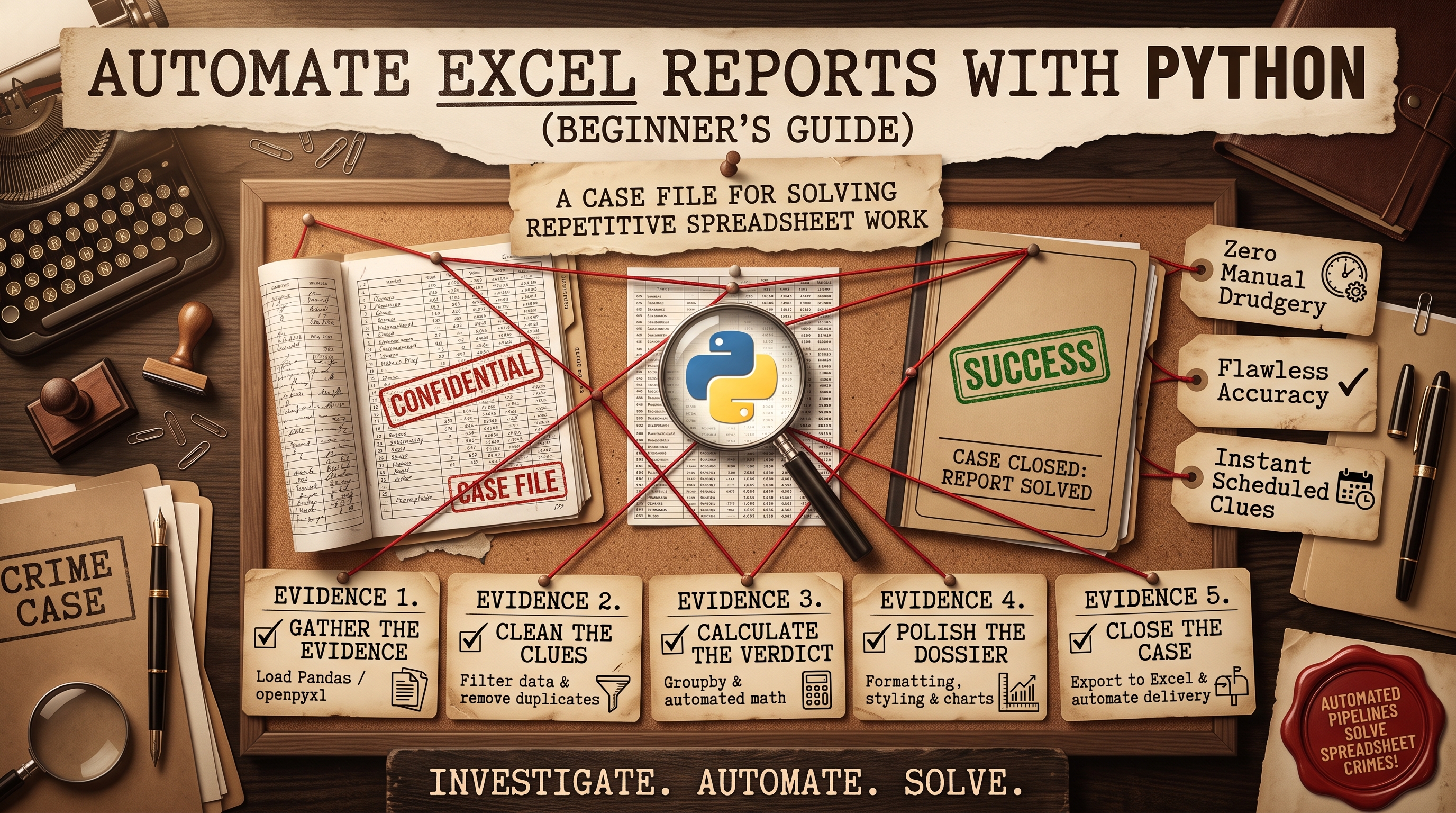
Why Automate Excel Reports?
Somewhere in your company, someone spends every Monday morning downloading a CSV, cleaning it up, pasting it into a template, fixing the formatting, and emailing it out. That person might be you. According to our analysis of the true cost of manual data entry, this kind of repetitive work quietly drains thousands of dollars a year — and introduces errors every single week.
Python is the fastest way to kill this chore. Two free libraries — pandas for data crunching and openpyxl for Excel formatting — can turn a 2-hour manual task into a script that runs in seconds.
Step 1: Install the Tools
You need Python 3 installed, then run:
pip install pandas openpyxlThat's it. No licenses, no subscriptions.
Step 2: Read Data from Excel
Most report automation starts with reading a raw export — from your CRM, accounting software, or a database dump:
import pandas as pd

# Read the raw export
df = pd.read_excel("sales_export.xlsx")

# Peek at the first few rows
print(df.head())
print(df.columns)
pandas loads the spreadsheet into a table-like structure (a DataFrame) that you can filter, group, and summarize with one-liners.
Step 3: Process the Data
Here's a realistic example — a monthly sales summary by region:
# Total revenue per region
summary = df.groupby("Region")["Revenue"].sum().reset_index()

# Add a total row
total = summary["Revenue"].sum()
summary.loc[len(summary)] = ["TOTAL", total]

print(summary)
What took 20 minutes of pivot-table fiddling is now three lines of code that run identically every time.
Step 4: Write a Formatted Report
pandas writes plain spreadsheets, but for a report people actually read, you want headers, number formats, and maybe a chart. That's where openpyxl comes in:
from openpyxl import Workbook
from openpyxl.styles import Font, PatternFill

wb = Workbook()
ws = wb.active
ws.title = "Monthly Sales"

# Header row with styling
headers = ["Region", "Revenue"]
for col, h in enumerate(headers, start=1):
    cell = ws.cell(row=1, column=col, value=h)
    cell.font = Font(bold=True, color="FFFFFF")
    cell.fill = PatternFill("solid", fgColor="4472C4")

# Data rows
for r, row in enumerate(summary.itertuples(), start=2):
    ws.cell(row=r, column=1, value=row.Region)
    ws.cell(row=r, column=2, value=row.Revenue).number_format = '"$"#,##0'

wb.save("monthly_sales_report.xlsx")
Step 5: Put It on Autopilot
A script you have to remember to run is only half the solution. Schedule it with cron (Linux/Mac) or Task Scheduler (Windows) so the report lands in your inbox every Monday at 8 AM without anyone touching it. Combine it with an automated email workflow and the entire process — extract, transform, format, deliver — runs itself.
Common Beginner Mistakes
- Hardcoding file paths. Use relative paths or a config section at the top of the script so it works on any machine.
- Ignoring data quality. Add a few sanity checks (e.g., "is the Revenue column empty?") so the script fails loudly instead of producing a wrong report silently.
- Overwriting the source file. Always write to a new file; never modify the original export.
- No error notifications. Wrap the main logic in try/except and email yourself on failure — otherwise you'll discover a broken report weeks later.
When Python Isn't the Answer
Python is perfect when the logic is custom or the volume is large. But if your report is really "copy this dashboard into a slide deck," a no-code tool may be faster to set up. Our n8n and Zapier implementation service handles those cases without writing a line of code.
Next Steps
Going Further: Pivot Tables and Charts
pandas can build pivot tables in one line — the equivalent of dragging fields around in Excel, but reproducible:
# Pivot: rows = Region, columns = Month, values = Revenue
pivot = df.pivot_table(values="Revenue", index="Region",
                       columns="Month", aggfunc="sum", fill_value=0)
print(pivot)
For charts, openpyxl can add native Excel charts that recipients can interact with:
from openpyxl.chart import BarChart, Reference

chart = BarChart()
data = Reference(ws, min_col=2, min_row=1, max_row=6)
chart.add_data(data, titles_from_data=True)
ws.add_chart(chart, "D2")
Putting It All Together: A Complete Script
Here's how the pieces combine into a real-world script structure:
import pandas as pd
from openpyxl import load_workbook
from openpyxl.styles import Font, PatternFill

# 1. EXTRACT: read raw data
df = pd.read_excel("sales_export.xlsx")

# 2. TRANSFORM: clean and summarize
df = df.dropna(subset=["Revenue"])          # remove bad rows
summary = df.groupby("Region")["Revenue"].sum().reset_index()
# 3. LOAD: write to a formatted template
summary.to_excel("report.xlsx", index=False)
wb = load_workbook("report.xlsx")
ws = wb.active
for cell in ws[1]:
    cell.font = Font(bold=True, color="FFFFFF")
    cell.fill = PatternFill("solid", fgColor="4472C4")
wb.save("report.xlsx")
print("Report generated.")
This extract-transform-load pattern is the backbone of nearly all reporting automation.
Troubleshooting Common Issues
- "ModuleNotFoundError: No module named 'openpyxl'" — you installed pandas but writing .xlsx needs openpyxl installed separately.
- Dates showing as numbers — Excel stores dates as serial numbers; use
pd.to_datetime(df["Date"])to parse them. - Merged cells breaking reads — unmerge in the source or use
header=Noneand clean manually. - Huge files running slowly — for 100k+ rows, read with
usecolsto load only needed columns, or switch to CSV.
Library Comparison: Which Tool for Which Job
- pandas: the data-crunching engine. Reading, filtering, grouping, merging — if it involves manipulating data, pandas does it in one-liners. Weak at pretty formatting.
- openpyxl: full control over .xlsx files — styles, fonts, number formats, charts, conditional formatting. The choice when the report must look professional.
- xlsxwriter: fast writing of large .xlsx files with formatting and charts. Write-only (can't modify existing files), but excellent for generating reports from scratch at speed.
- xlwings: drives an actual Excel instance — macros, pivot-table refresh, anything that needs real Excel. Windows/Mac only and needs Excel installed, so it's for desktops, not servers.
Rule of thumb: pandas to compute, openpyxl or xlsxwriter to present. Reach for xlwings only when you must interact with a live Excel application rather than a file.
Error Handling That Actually Works
A report script that crashes silently at 3 AM is worse than no script at all. Build in three layers of defense — and make the whole thing a complete, runnable pattern:
import logging
import os
import smtplib
from email.message import EmailMessage
from pathlib import Path

import pandas as pd

logging.basicConfig(
    filename="report.log",
    level=logging.INFO,
    format="%(asctime)s - %(levelname)s - %(message)s",
)

def send_failure_alert(error):
    """Email yourself the moment the report breaks."""
    msg = EmailMessage()
    msg["Subject"] = "REPORT FAILED: weekly sales report"
    msg["From"] = os.environ["SMTP_USER"]
    msg["To"] = os.environ["ALERT_EMAIL"]
    msg.set_content(f"The report script failed:\n\n{error}\n\nSee report.log for details.")
    with smtplib.SMTP_SSL("smtp.gmail.com", 465, timeout=30) as smtp:
        smtp.login(os.environ["SMTP_USER"], os.environ["SMTP_PASSWORD"])
        smtp.send_message(msg)

def main():
    source = Path("sales_export.xlsx")
    # Layer 1: validate inputs before doing anything
    if not source.exists():
        raise SystemExit("Source file not found — aborting, no report generated.")
    df = pd.read_excel(source)
    # Layer 2: sanity-check the data
    if df.empty or "Revenue" not in df.columns:
        raise SystemExit("Data validation failed — aborting.")
    # Layer 3: your report logic goes here
    build_report(df)
    logging.info("Report generated successfully.")

if __name__ == "__main__":
    try:
        main()
    except Exception as e:
        logging.exception("Report failed")
        try:
            send_failure_alert(e)
        except Exception:
            logging.exception("Could not send failure alert")
        raise
Validate inputs, sanity-check the data, and always alert on failure. A script that emails you when it breaks is a script you can trust — one that fails silently will embarrass you in front of whoever reads that report.
Scheduling in Production
On Linux/Mac, cron does the job:
# Run every Monday at 8:00 AM, capture all output to a log
0 8 * * 1 /home/reports/venv/bin/python /home/reports/weekly_report.py >> /home/reports/cron.log 2>&1- Use absolute paths. Cron runs with a minimal environment — relative paths and a bare
python3are the top cause of "works manually, fails on schedule." - Use a virtualenv and point cron at its Python binary so library versions stay pinned and identical to your dev machine.
- Prevent overlaps with a lock file — if one run is still going when the next starts, you'll get corrupted output or duplicate emails.
- Log everything. Without logs, a silent cron failure is invisible until someone asks where the report is.
On Windows, Task Scheduler is the equivalent: create a trigger on your schedule, set the action to "start a program" pointing at your virtualenv's python.exe with the script as its argument, and set "start in" to the script's folder so relative paths resolve.
Combining Multiple Data Sources
Real reports rarely come from one file. Here's merging a CSV export with an Excel price list and a SQLite database in a few lines:
import sqlite3
import pandas as pd

sales = pd.read_csv("sales_export.csv")
prices = pd.read_excel("price_list.xlsx")
with sqlite3.connect("warehouse.db") as conn:
    stock = pd.read_sql("SELECT sku, quantity FROM inventory", conn)

report = sales.merge(prices, on="SKU").merge(stock, on="SKU")
report["stock_value"] = report["quantity"] * report["unit_price"]
Need to pull data from a web API instead of files? That's where a proper custom API integration earns its keep — authenticate once, fetch on schedule, and feed the results straight into your pandas pipeline.
For monthly file dumps (jan.xlsx, feb.xlsx, …), pd.concat over a glob pattern assembles them in two lines — just validate that column names match across files first, because one renamed column in March will silently misalign everything after it.
Testing Your Report Script
- Keep a fixture: a small sample input with hand-verified expected output. Run the script against it after every change — it takes seconds and catches most regressions.
- Assert the invariants: totals match the source data, row counts are sane, no negative revenues. A handful of
assertstatements beats hoping. - Diff against the manual version for the first few runs. The numbers must match exactly before you retire the old process — "close enough" is how wrong reports ship.
- Test the ugly inputs: an empty file, a month with zero sales, special characters in customer names. Production data is never as clean as your test file.
FAQs
Q: Can Python edit an existing Excel file without breaking formulas?
A: Yes — openpyxl preserves formulas when you load and re-save a workbook (it won't recalculate them; Excel does that on open). The safe pattern: read with pandas, write values into a copy, and never overwrite your original template. Avoid editing macro-enabled files (.xlsm) unless you've tested thoroughly.
Q: How do I handle very large files?
A: Read only the columns you need with usecols, process in chunks with chunksize, and prefer CSV over .xlsx for raw data — CSV parsing is dramatically faster. For truly big data (millions of rows), consider DuckDB or Polars instead of pandas.
Q: What if the source export changes column names?
A: It will, eventually. Keep a column-mapping dictionary at the top of your script that translates expected names to whatever the export uses, and validate required columns on load with a clear error message. Failing loudly on unexpected columns beats silently producing a wrong report.
Q: Should the script run on my laptop or a server?
A: A server — even a cheap VPS. Laptops sleep, get rebooted, and go home with you; scheduled reports need an always-on machine. Keep credentials in environment variables, not in the script, especially on shared machines.
Start small: pick your most annoying recurring report, write a script that reproduces it, and run it side-by-side with the manual version for two weeks. Once you trust it, schedule it and never think about it again. And if the project is bigger than a weekend script — multiple data sources, approvals, distribution lists — talk to OctaTechno. We build production-grade reporting automation that your whole team can rely on.