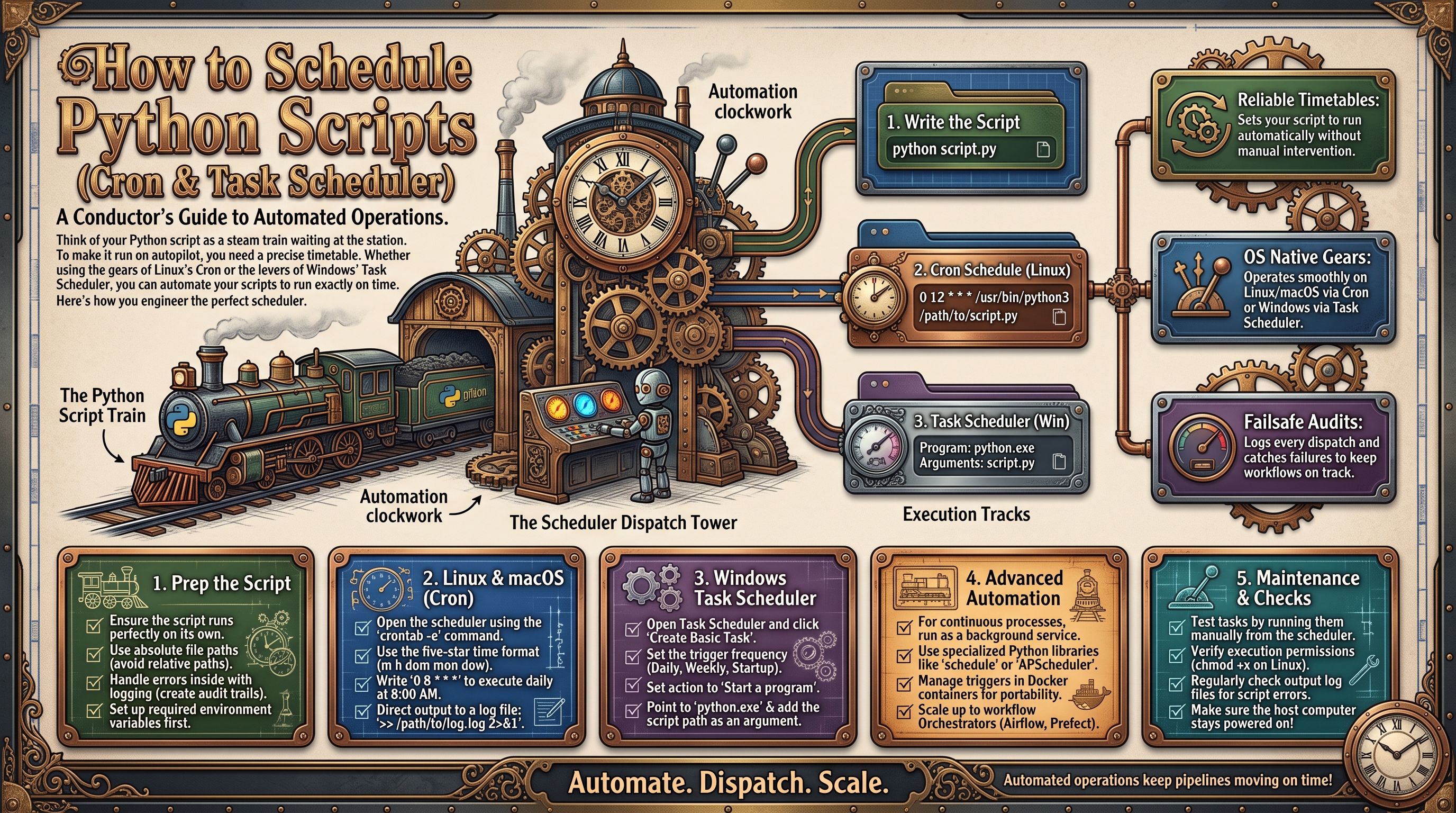
Why Schedule Scripts?
You've written a script that generates a report, syncs data, or sends emails. But if you have to remember to run it every morning, you haven't really automated anything — you've just changed the chore. Scheduling makes the script run itself: every hour, every morning, every Monday, whatever you need.
Option 1: Cron (Linux & Mac)
Cron is the built-in scheduler on Linux and macOS. Open your schedule with:
crontab -eEach line is one scheduled job with five time fields followed by the command:
# ┌─ minute (0-59)
# │ ┌─ hour (0-23)
# │ │ ┌─ day of month (1-31)
# │ │ │ ┌─ month (1-12)
# │ │ │ │ ┌─ day of week (0-6, Sunday=0)
# │ │ │ │ │
# * * * * * command

# Every weekday at 8:00 AM
0 8 * * 1-5 /usr/bin/python3 /home/user/scripts/daily_report.py

# Every Monday at 9:30 AM
30 9 * * 1 /usr/bin/python3 /home/user/scripts/weekly_sync.py

# Every 15 minutes
*/15 * * * * /usr/bin/python3 /home/user/scripts/check_inventory.py
Cron gotchas for Python scripts
- Use absolute paths. Cron runs with a minimal environment —
python3alone may not resolve. Find yours withwhich python3. - Activate your virtualenv explicitly. Use the venv's Python directly:
/home/user/venv/bin/python. - Capture output. Append
>> /path/to/script.log 2>&1to every job, or failures vanish silently. - Set the working directory. If your script reads relative files,
cdfirst:0 8 * * * cd /home/user/scripts && /usr/bin/python3 daily_report.py.
Option 2: Task Scheduler (Windows)
- Open Task Scheduler → Create Basic Task
- Name it (e.g., "Daily Sales Report") and set the trigger (daily at 8:00 AM)
- Action: "Start a program" → Program:
C:\Python311\python.exe→ Arguments:C:\scripts\daily_report.py - On the Conditions tab, uncheck "Start the task only if the computer is on AC power" if it's a server
- Enable "Run whether user is logged on or not" for unattended servers
For logging, have your script write to a log file itself (see below) since Task Scheduler's history is awkward to read.
Adding Logging and Error Alerts
A scheduled script that fails silently is worse than no script. Add logging and email yourself on errors:
import logging, traceback
from email.message import EmailMessage
import smtplib

logging.basicConfig(
    filename="/home/user/scripts/daily_report.log",
    level=logging.INFO,
    format="%(asctime)s %(levelname)s: %(message)s",
)

def send_alert(error):
    msg = EmailMessage()
    msg["Subject"] = "ALERT: daily_report.py failed"
    msg["From"] = "alerts@yourcompany.com"
    msg["To"] = "you@yourcompany.com"
    msg.set_content(f"The scheduled script failed:\n\n{error}")
    with smtplib.SMTP_SSL("smtp.gmail.com", 465) as s:
        s.login("alerts@yourcompany.com", "APP_PASSWORD")
        s.send_message(msg)

try:
    logging.info("Starting daily report")
    main()  # your actual logic
    logging.info("Report completed successfully")
except Exception:
    error = traceback.format_exc()
    logging.error(error)
    send_alert(error)
    raise
When Scheduling Isn't Enough
Cron and Task Scheduler are fine for simple time-based jobs on a machine you control. But they struggle with: event-triggered runs ("when a file arrives"), retries with backoff, dependencies between jobs, and monitoring across many scripts. For that, consider a workflow platform — n8n's webhook and schedule triggers handle both time-based and event-based automation with a visual dashboard.
Modern Alternative: Systemd Timers (Linux)
On modern Linux servers, systemd timers are replacing cron — they offer logging via journalctl, dependency management, and better failure handling:
# /etc/systemd/system/daily-report.service
[Unit]
Description=Daily sales report

[Service]
Type=oneshot
ExecStart=/home/user/venv/bin/python /home/user/scripts/daily_report.py
WorkingDirectory=/home/user/scripts
# /etc/systemd/system/daily-report.timer
[Unit]
Description=Run daily report at 8am
[Timer]
OnCalendar=Mon-Fri 08:00
Persistent=true
[Install]
WantedBy=timers.targetEnable with systemctl enable --now daily-report.timer. Logs appear in journalctl -u daily-report — no manual log files needed.
Scheduling Without a Server: GitHub Actions
No server? GitHub Actions runs scheduled Python for free (within limits):
# .github/workflows/daily.yml
name: Daily Report
on:
  schedule:
    - cron: '0 8 * * 1-5'  # weekdays 8am UTC
jobs:
  report:
    runs-on: ubuntu-latest
    steps:
      - uses: actions/checkout@v4
      - uses: actions/setup-python@v5
        with: { python-version: '3.11' }
      - run: |
          pip install pandas openpyxl requests
          python scripts/daily_report.py
        env:
          API_KEY: ${{ secrets.API_KEY }}
Secrets stay encrypted, runs are logged, and failures can notify you. Perfect for lightweight scheduled jobs.
In-Code Scheduling with APScheduler
If your script is long-running (a bot, a monitor), schedule inside Python instead of relying on the OS:
pip install apschedulerfrom apscheduler.schedulers.blocking import BlockingScheduler
scheduler = BlockingScheduler()
@scheduler.scheduled_job("cron", day_of_week="mon-fri", hour=8)
def morning_report():
print("Generating report...")
@scheduler.scheduled_job("interval", minutes=15)
def health_check():
print("Checking systems...")
scheduler.start()Debugging: Why Isn't My Cron Job Running?
- Check the cron log:
grep CRON /var/log/syslog(Ubuntu) shows whether cron even attempted the job. - Environment differences: cron's PATH is minimal. Always use absolute paths for Python and files.
- Permission issues: the cron user must be able to read the script and write the log/output files.
- Silent crashes: without
2>&1log redirection, errors go to local mail nobody reads. Always capture output. - Overlapping runs: if a job takes longer than its interval, add a lock file to prevent parallel executions.
Preventing Overlapping Runs
If a script occasionally takes longer than its schedule interval, two copies can run simultaneously — corrupting outputs or double-sending emails. Prevent this with a lock file: at startup, check for /tmp/my_script.lock; if it exists, exit quietly. Create it when starting, delete it when done (in a finally block so crashes still release the lock). For critical jobs, this five-line safeguard prevents an entire class of nasty bugs.
Know Instantly When a Job Fails: Healthchecks.io
Email alerts from the script itself are a start, but they can't tell you the job never ran — a dead cron daemon sends no emails. Dead-man's-switch monitoring flips the logic: your script pings a monitoring service on success, and the service alerts you when a ping goes missing:
import requests

PING_URL = "https://hc-ping.com/your-uuid-here"

try:
    main()
    requests.get(PING_URL, timeout=10)          # success ping
except Exception:
    requests.get(PING_URL + "/fail", timeout=10)  # explicit failure
    raise
Healthchecks.io (free tier available) then emails or Slacks you if the success ping doesn't arrive on schedule. This catches the failures email alerts miss: server reboots, cron misconfigurations, and scripts that die before reaching their own alerting code. For business-critical jobs, this is non-negotiable.
Docker-ize Your Scheduled Jobs
"Works on my laptop" is the classic scheduling failure — the server has a different Python version, missing packages, or wrong timezone. A Docker image freezes the entire environment:
# Dockerfile
FROM python:3.11-slim
WORKDIR /app
COPY requirements.txt .
RUN pip install --no-cache-dir -r requirements.txt
COPY daily_report.py .
CMD ["python", "daily_report.py"]
# run it from cron or any scheduler
0 8 * * 1-5 docker run --rm --env-file /home/user/scripts/.env reports:latestThe host's cron stays as the trigger; the container guarantees the runtime. --rm cleans up the container after each run so you don't accumulate dead containers, and --env-file injects secrets without baking them into the image.
Log Rotation: Don't Fill the Disk
A script logging every run will eventually fill the disk — usually at the worst possible moment. Python's RotatingFileHandler caps log size automatically:
import logging
from logging.handlers import RotatingFileHandler

handler = RotatingFileHandler(
    "/home/user/scripts/daily_report.log",
    maxBytes=5 * 1024 * 1024,  # 5 MB per file
    backupCount=5,              # keep 5 old files
)
logging.basicConfig(
    handlers=[handler],
    level=logging.INFO,
    format="%(asctime)s %(levelname)s: %(message)s",
)
When the log hits 5 MB it rolls over to daily_report.log.1, keeping five generations — 30 MB maximum, forever, with zero maintenance.
Keep Secrets Out of Your Crontab
Cron lines are visible to every user on the machine via ps aux while the job runs — so never put passwords or API keys in the command itself. The right pattern is an environment file readable only by the job's user:
# /home/user/scripts/.env (chmod 600)
API_KEY=sk-live-abc123
DB_PASSWORD=s3cret
# cron line - secrets stay out of the command
0 8 * * 1-5 cd /home/user/scripts && set -a && . ./.env && /home/user/venv/bin/python daily_report.pyWith systemd timers it's even cleaner: add EnvironmentFile=/home/user/scripts/.env to the [Service] section. And in your Python code, read everything via os.getenv() — a script with zero hardcoded secrets can be committed to version control safely.
Windows Scheduling from the Command Line
The Task Scheduler GUI is fine for one machine, but schtasks lets you script and document the setup — repeatable across servers:
schtasks /create /tn "Daily Sales Report" /tr "C:\Python311\python.exe C:\scripts\daily_report.py" /sc daily /st 08:00 /ru SYSTEM /fKey flags: /sc daily /st 08:00 sets the schedule, /ru SYSTEM runs without a logged-in user, and /f overwrites any existing task with the same name. Save the command in a setup script next to your Python code and the whole deployment becomes reproducible.
FAQs
Q: Cron or systemd timers — which should I use?
A: On modern Linux, systemd timers: built-in logging via journalctl, dependency ordering, and Persistent=true catches up missed runs after downtime. Cron is still fine for simple jobs and remains the universal option on macOS.
Q: My script works when I run it but fails under cron. Why?
A: Almost always the environment: cron's minimal PATH, a missing virtualenv activation, relative file paths, or environment variables your shell sets but cron doesn't. The debugging checklist above plus absolute paths everywhere solves the vast majority of cases.
Q: How do I know a scheduled job actually ran?
A: Don't rely on "no news is good news." Use dead-man's-switch monitoring (Healthchecks.io): the job pings on success, and you get alerted when a ping goes missing. This is the only approach that catches jobs that never started.
Q: Should long-running scripts use cron or APScheduler?
A: Use the OS scheduler (cron/systemd) for scripts that start, do a job, and exit — it's simpler and survives restarts better. Use APScheduler inside the process only when the program is already long-running (a bot or monitor) and needs internal timing.
Running business-critical automations that can't afford to fail silently? OctaTechno designs monitored, self-healing automation systems — from simple scheduled scripts to full workflow automation platforms.