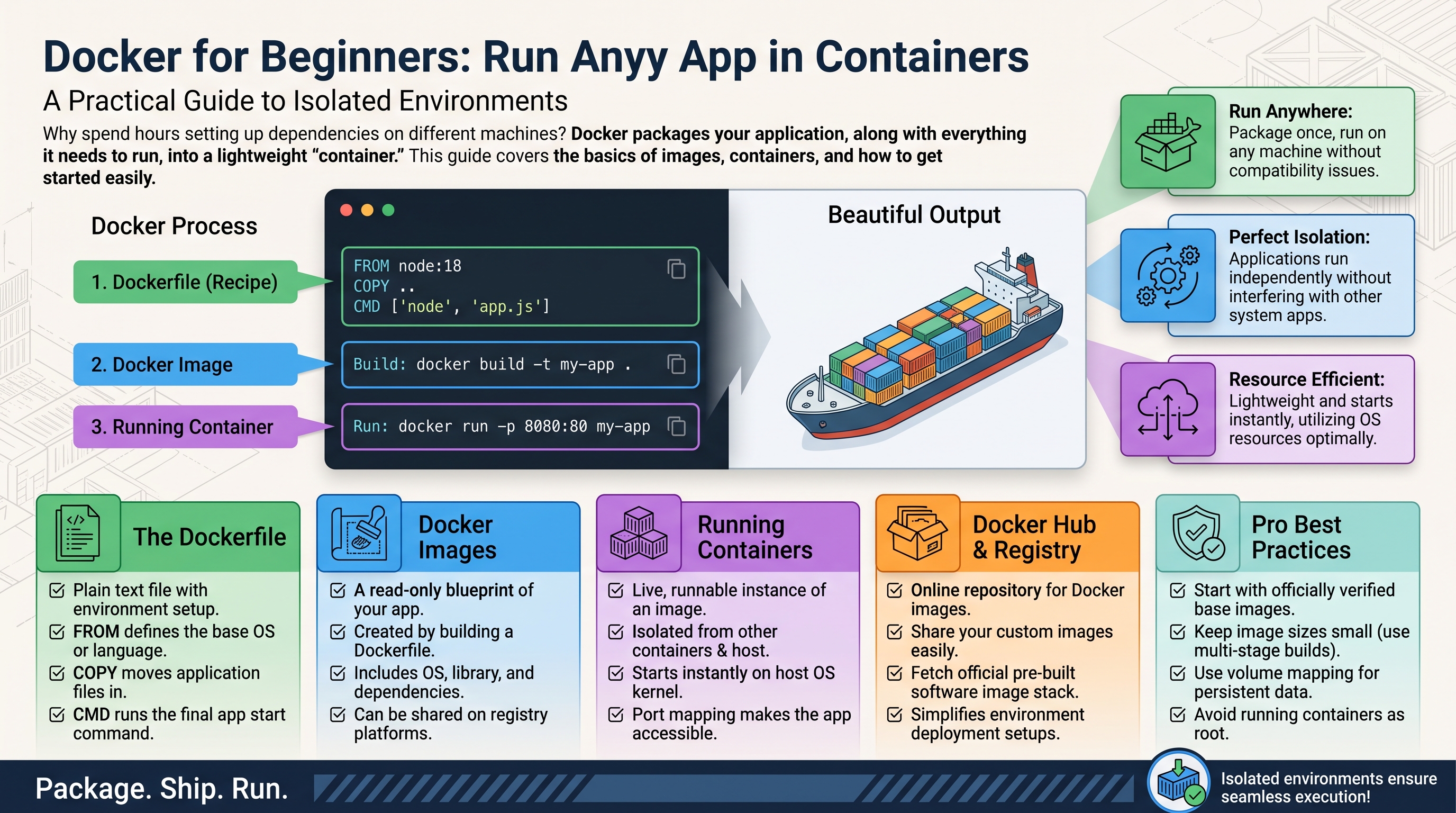
What Docker Actually Is
Docker packages an application and everything it needs — code, runtime, libraries, settings — into a portable unit called a container. A container runs the same way on your laptop, a $5 VPS, or a corporate server. No more "it works on my machine." For automation work, this means you can deploy n8n, databases, and custom scripts on one server without dependency conflicts.
Core Concepts in 60 Seconds
- Image: a frozen template (like an ISO file). Example:
n8nio/n8n. - Container: a running instance of an image. You can run many containers from one image.
- Volume: persistent storage. Containers are disposable; volumes keep your data.
- Port mapping: exposes a container's internal port to the host, e.g.
-p 5678:5678. - Docker Compose: a YAML file that defines multi-container apps so you start everything with one command.
Install Docker
On Ubuntu 22.04/24.04:
curl -fsSL https://get.docker.com | sh
sudo usermod -aG docker $USER
# log out and back in, then:
docker run hello-world
If you see "Hello from Docker!", you are set.
Your First Real Container
Run a Postgres database in one command:
docker run -d \
  --name mydb \
  -e POSTGRES_PASSWORD=secret123 \
  -v pgdata:/var/lib/postgresql/data \
  -p 5432:5432 \
  postgres:16
What happened: Docker pulled the postgres:16 image, started a container named mydb, stored data in the pgdata volume (survives restarts), and exposed port 5432. Stop it with docker stop mydb, remove it with docker rm mydb — the data stays in the volume.
Debugging: When a Container Won't Start
Containers fail silently — the command exits and you're left guessing. The workflow: docker ps -a shows the exit code, docker logs <name> shows why. Exit 1 usually means the app crashed (read the traceback); exit 137 means OOM-killed (give it more memory); "port already in use" means something else owns that host port.
Three fast checks while debugging: run without -d first so logs stream to your terminal; add --rm so failed attempts clean up after themselves; and docker exec -it <name> sh into a running container to inspect its filesystem and environment variables. The most common beginner cause of "the app is fine but broken": it can't reach its database — which is almost always a networking issue, covered two sections down. Learn docker logs before anything else; it's the stethoscope of Docker debugging.
Docker Compose: The Real Power
Real apps need multiple containers. Compose defines them in one file. Here is n8n with a dedicated Postgres database instead of SQLite:
cat > docker-compose.yml <<'EOF'
services:
  postgres:
    image: postgres:16
    restart: unless-stopped
    environment:
      POSTGRES_DB: n8n
      POSTGRES_USER: n8n
      POSTGRES_PASSWORD: change-me-please
    volumes:
      - pgdata:/var/lib/postgresql/data

  n8n:
    image: n8nio/n8n:latest
    restart: unless-stopped
    ports:
      - "127.0.0.1:5678:5678"
    environment:
      - DB_TYPE=postgresdb
      - DB_POSTGRESDB_HOST=postgres
      - DB_POSTGRESDB_USER=n8n
      - DB_POSTGRESDB_PASSWORD=change-me-please
    volumes:
      - n8n_data:/home/node/.n8n
    depends_on:
      - postgres

volumes:
  pgdata:
  n8n_data:
EOF
docker compose up -d
One command starts the database and n8n, wired together on an internal network. docker compose logs -f shows logs; docker compose down stops everything.
Commands You Will Use Daily
docker ps                    # running containers
docker ps -a                 # all containers
docker logs -f mydb          # follow logs
docker exec -it mydb bash    # shell inside container
docker compose up -d         # start stack
docker compose pull && docker compose up -d   # update everything
docker system df             # disk usage
docker system prune -a        # clean unused images (careful!)
Disk Space: Docker's Silent Killer
Every docker compose pull leaves the old image behind. Every build leaves layers. Docker's disk usage grows forever until you intervene — on a 25 GB VPS, this becomes an emergency within months. Know your usage with docker system df, which breaks out images, containers, volumes, and build cache.
Reclaim safely: docker image prune -a removes images no container uses; docker builder prune clears build cache; docker volume prune removes orphaned volumes — run that last one carefully, since "orphaned" only means "not attached right now." The real fix is log rotation: by default Docker keeps container logs forever. Set it once in /etc/docker/daemon.json:
{
  "log-driver": "json-file",
  "log-opts": { "max-size": "10m", "max-file": "3" }
}
Then systemctl restart docker. Thirty megabytes of logs per container, maximum, forever. Check docker system df monthly — put it in your calendar until it's a habit.
Three Beginner Mistakes
1. No volumes. Data inside a container without a volume vanishes on update. Always map volumes for databases and app data.
2. :latest in production without a plan. Fine for homelabs, but pin versions (e.g. n8n:1.64.0) for anything important so updates are deliberate.
3. Exposing ports publicly. Bind to localhost (127.0.0.1:5678:5678) and put a reverse proxy like Caddy in front — never expose database ports to the internet.
Docker is the foundation of cheap, reliable self-hosting. Pair it with our VPS hardening guide and you can run your entire automation stack for a few dollars a month.
Healthchecks: Catch Failures Early
A container can be "running" while the app inside is broken — the process is alive but every request fails. Healthchecks fix this: Docker periodically runs a command you define and marks the container unhealthy when it fails. In Compose:
healthcheck:
  test: ["CMD", "curl", "-f", "http://localhost:5678/healthz"]
  interval: 30s
  timeout: 5s
  retries: 3
Pair it with depends_on using condition: service_healthy so n8n waits for Postgres to actually accept connections instead of merely existing — this eliminates a whole class of "database connection refused on startup" errors. Not every image ships curl; check what's available, or use a TCP-style check like pg_isready for Postgres. Five lines of YAML that turn silent failures into visible ones.
How Containers Talk: Networking
Containers on the same Compose network reach each other by service name — that is why the n8n container uses DB_POSTGRESDB_HOST=postgres instead of an IP address. Docker runs an internal DNS for this. Containers on different Compose projects are isolated by default, which is good security hygiene: your n8n database is not reachable from an unrelated app on the same server unless you explicitly connect the networks.
Networking Gotchas
Three networking traps every beginner hits. First: localhost inside a container means the container itself, not your server. A containerized app connecting to localhost:5432 is talking to itself — use the service name (postgres) or host.docker.internal for the actual host. Second: port conflicts. Two containers can both listen on internal port 3000, but they can't both publish host port 3000 — the second fails to start. Map different host ports (3001:3000) or keep one on the internal network only. Third: stale DNS. Containers resolve service names through Docker's embedded DNS and pick up recreated containers' new IPs automatically — but apps that resolved an IP once at startup and cached it won't. When "it worked until I restarted the database," cached connections are the usual suspect. docker network inspect <network> shows exactly who's connected to what.
Environment Variables and Secrets
Never hardcode passwords in docker-compose.yml if the file lives in git. Use a .env file in the same directory:
# .env (add to .gitignore!)
POSTGRES_PASSWORD=a-long-random-string-here
N8N_DOMAIN=n8n.yourdomain.com
Reference them in compose with ${POSTGRES_PASSWORD}. Generate secrets with openssl rand -hex 32. For production, consider a secrets manager — but a .env with 600 permissions beats plaintext in compose files.
Bind Mounts vs Named Volumes
Named volumes (like n8n_data) are managed by Docker and ideal for databases — portable and easy to back up. Bind mounts map a host directory directly (./config:/app/config) and are better when you need to edit files from the host, like Caddy's Caddyfile. Rule of thumb: data → named volumes, config you edit → bind mounts.
Backing Up Docker Volumes
Volumes persist data across restarts — but that isn't a backup. The standard pattern uses a throwaway container to tar the volume:
docker run --rm -v myapp_data:/data -v $(pwd)/backups:/backup alpine tar czf /backup/myapp-$(date +%F).tar.gz -C /data .Restore is the mirror image: stop the app, then extract the archive into the volume with another throwaway container. Two rules: never back up a live database by tarring its files — use the database's own dump tool (pg_dump) for consistency, and keep the tar as a second layer. And automate it: a cron job running the backup nightly, plus rclone syncing off-server, turns a dead VPS from a disaster into a 30-minute restore. Test the restore once — an untested backup is a prayer with extra steps.
Putting It Together: A Full Stack
A realistic small-business server runs n8n, Postgres, and Caddy in one Compose project, all on internal networking, with only Caddy's ports 80/443 public. Add Watchtower for automatic image updates (pin versions first), and you have a maintainable platform that costs less than one Zapier seat.
FAQ: Docker for Beginners
Docker vs. a virtual machine — what's the difference?
A VM virtualizes hardware and runs a full guest OS — gigabytes of disk, slow boot. A container shares the host's kernel and packages just the app and its dependencies — megabytes, near-instant start. For running apps, containers are lighter and faster; VMs still win when you need a different OS kernel or hard isolation.
Is Docker safe for production?
Yes, with the basics covered: don't run containers as root unnecessarily, keep images updated, never expose database ports publicly, and keep secrets out of git. Millions of production workloads run on Docker — the risks come from misconfiguration, not the technology.
How much RAM does Docker itself need?
The daemon is light, around 100-200 MB. What matters is the sum of your containers — budget per app, not per Docker. A 2 GB VPS comfortably runs three to five small services; monitor with docker stats and set memory limits per container.
Should I learn Kubernetes instead?
Not yet. Kubernetes solves multi-server orchestration — meaningful around ten-plus servers or a dedicated platform team. For one to three servers, Docker Compose is simpler, cheaper, and entirely sufficient. Learn Compose deeply first; the concepts transfer.
Prefer not to manage servers at all? Talk to OctaTechno — we handle Docker infrastructure and build the automations that run on it.